DEEPFIELD
A galactic space reverb. Two engines stacked into one space, drifting between worlds, travelling round you, singing and rumbling.
Download the PDF ↓01Welcome to DEEPFIELD
One small window that holds whole galaxies. DEEPFIELD stacks two reverb engines, drifts between them on an orbit, sends the tail travelling round a sphere around you, and lets the space itself sing and rumble.
DEEPFIELD works perfectly well as a studio reverb: put OBSERVATORY in a slot, pick a hall or a room, set the mix and get on with your song. But it was built for the spaces that don't exist anywhere else: tails that last a minute and swell inward, plates that flare when you hit them, cathedrals whose pitch bends as they fade, and clouds of sound that move slowly from one world into another.
What makes it different
- Two engines, one space. Any of twelve engines in either slot, side by side or one feeding the other.
- GALACTIC SHIFT. MORPH between the two slots by hand, or let the orbit drift between them on its own.
- SPIRAL. The tail travels round a sphere around you: left and right, behind you, over the top and underneath.
- PARTIALS. A set of tuned partials that ring out of the tail itself and bring the reverb to life.
- RUMBLE. A sub octave, a rolling low growl and a DARK control for depth and darkness under the space.
- The Sequoia way of playing. Drag modulation onto any knob, map any MIDI controller to anything, and roll a brand-new sound in one click, with a back button for when you go too far.
About this manual
Control names are shown as they appear in the window, for example DECAY. Ranges are given as lowest to highest with the default in brackets. Chapters 7 to 14 follow the path the sound takes through the plugin, so you can read them in order or jump straight to the module you're looking at.
02Installing
DEEPFIELD comes as VST3, AU, AUv3 and CLAP plugins. Install the formats your DAW uses; installing all of them does no harm.
macOS
- Unzip the download and open Terminal (Applications › Utilities › Terminal).
- Type
bashfollowed by a space. - Drag Install DEEPFIELD.command from the unzipped folder into the Terminal window, then press Return.
- Restart your DAW and rescan plugins. DEEPFIELD is listed under Sequoia Synthesizers Co.
The installer copies each format to the folder your DAW reads and clears the download block macOS puts on files from the internet.
Installing by hand
| File | Copy it to |
|---|---|
| DEEPFIELD.vst3 | ~/Library/Audio/Plug-Ins/VST3/ |
| DEEPFIELD.component | ~/Library/Audio/Plug-Ins/Components/ (AU) |
| DEEPFIELD.clap | ~/Library/Audio/Plug-Ins/CLAP/ |
| DEEPFIELD.app (AUv3) | Applications. Apple keeps every AUv3 plugin inside a small app: open it once and AUv3 hosts list DEEPFIELD. |
In Finder, choose Go › Go to Folder… and paste the path. Then paste this one line into Terminal to clear the download block (it asks for your Mac password; nothing shows while you type, which is normal):
xattr -cr ~/Library/Audio/Plug-Ins; sudo xattr -cr /Library/Audio/Plug-Ins
Windows
- Unzip the download, right-click Install DEEPFIELD (Windows).bat and choose Run as administrator.
- Restart your DAW and rescan plugins.
| File | Copy it to (by hand) |
|---|---|
| DEEPFIELD.vst3 | C:\Program Files\Common Files\VST3\ |
| DEEPFIELD.clap | C:\Program Files\Common Files\CLAP\ |
If Windows shows "Windows protected your PC", click More info, then Run anyway.
DEEPFIELD's 67 factory presets are built into the plugin, so there is nothing extra to install. Presets you save yourself go into its preset folder (see chapter 18) and are never overwritten.
03Activating your licence / free trial
DEEPFIELD comes with a 14-day free trial. Everything works, and there is nothing to sign up for. The first time you open DEEPFIELD, a short welcome card explains how the trial works.
To unlock DEEPFIELD for good, buy it at sequoiasynths.com. Your licence key appears on the thank-you page and comes by email, with a .seqlicence file.
- Open DEEPFIELD and click the trial status at the bottom of the window, or right-click HELP and choose Licence...
- Paste your key (it starts with
SEQ-), or drop the.seqlicencefile onto the panel. - That's it: DEEPFIELD is unlocked on this computer, in every project, and every open DEEPFIELD window unlocks at once.
DEEPFIELD checks your key on your computer. It needs no internet connection and no account, and it never sends anything anywhere. Your licences are kept in ~/Library/Application Support/Sequoia Synthesizers/Licences on a Mac and %APPDATA%\Sequoia Synthesizers\Licences on Windows. Keep your .seqlicence file somewhere safe: it activates DEEPFIELD on your other computers too.
04Quick start
Five minutes from an empty insert to your first galaxy.
- Insert DEEPFIELD on a track with something sustained on it: a pad, a vocal, a guitar chord. On a send/return bus, turn MIX to 100%.
- Pick a preset. Click the preset name in the header and try Nebulae › Deep Field, then step through the others with the ‹ › arrows. Each category leans a different way.
- Set the size of the space. SIZE and DECAY in the SPACE panel are the two big ones: how big, and how long.
- Move it. Turn REACH up in GALACTIC SHIFT and the sound drifts between the two engines on its own. Turn SPIRAL up and it travels round you. Headphones make SPIRAL obvious.
- Bring it to life. Turn AMOUNT up in PARTIALS and the tail starts to sing. Add RUMBLE or SUB for depth underneath.
Stuck for ideas? Click RANDOMIZE in the header. If you don't like the result, ‹ takes you back. RANDOMIZE never touches your output level, so a roll can't blast you.
05The window
Everything is on one page. The header holds presets and the global tools, the panels follow the sound, and the modulation sources sit along the bottom.
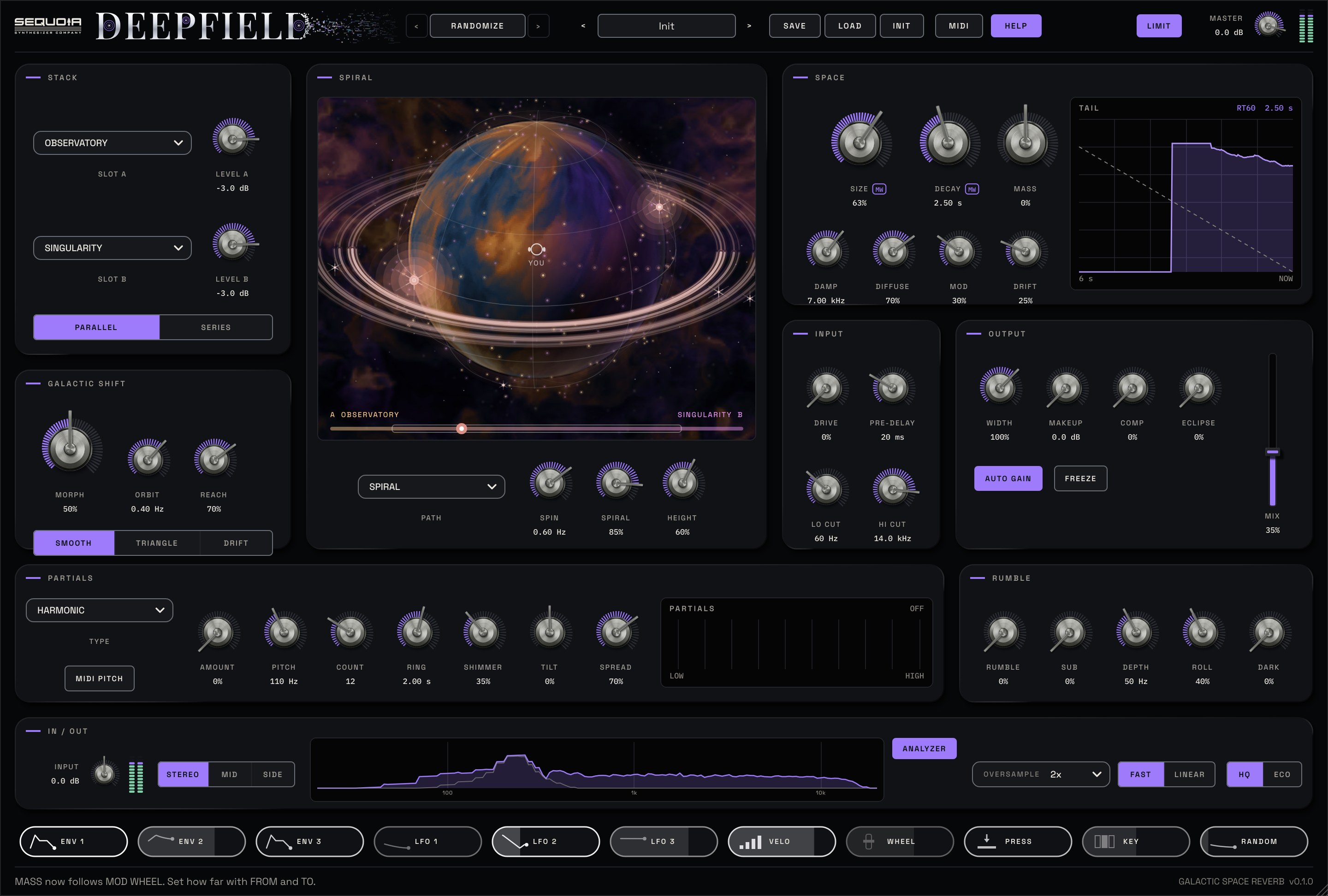
| # | Area | What it does |
|---|---|---|
| 1 | Header | ‹ RANDOMIZE ›, UNDO and REDO, the preset bar (‹ name › SAVE), A / B, MIDI (the MIDI MAP), HELP, LIMIT, MASTER and the output meter. |
| 2 | STACK | The two engine slots, their levels, and PARALLEL or SERIES routing. Chapter 8. |
| 3 | GALACTIC SHIFT | MORPH between the slots, by hand or on an orbit. Chapter 10. |
| 4 | SPIRAL | The GLOBE display, and PATH, SPIN, SPIRAL and HEIGHT. Chapter 11. |
| 5 | SPACE | SIZE, DECAY, MASS and the shape of the space, with the live TAIL display. Chapter 9. |
| 6 | INPUT | DRIVE, PRE-DELAY, LO CUT and HI CUT. Chapter 7. |
| 7 | OUTPUT | WIDTH, MAKEUP, COMP, ECLIPSE, AUTO GAIN, FREEZE and the MIX fader. Chapter 14. |
| 8 | PARTIALS | Tuned partials ringing out of the tail, with their live display. Chapter 12. |
| 9 | RUMBLE | RUMBLE, SUB, DEPTH, ROLL and DARK. Chapter 13. |
| 10 | IN / OUT | INPUT and its meter, PROCESS (STEREO · MID · SIDE), the spectrum ANALYZER, OVERSAMPLE and QUALITY. Chapter 14. |
| 11 | Modulation chips | ENV 1-3, LFO 1-3, VELO, WHEEL, PRESS, KEY and RANDOM. Chapter 15. |
| 12 | Help bar | Explains whatever the mouse is over. SIZE and the version number are on the right. |
Working with the controls
| To do this | Do this |
|---|---|
| Turn a knob | Drag up or down. Hold Shift for fine adjustment. |
| See a value | Under each knob you see only its name. Point at it or turn it and the name changes to its value. |
| Reset a knob | Double-click it to return it to its default. |
| Step a knob back | Right-click a knob to step it back (up to 10 times). Each knob remembers its own last 10 settings; loading a preset starts them afresh. |
| Type a value | Most hosts let you type values into their automation lanes: "2.4k", "120 ms", "50%" all work. |
| See every option | Shift + right-click a knob (Ctrl + right-click on Windows), or right-click any other control: Undo and Redo, Modulate with, and Map to MIDI. |
| Undo / redo | Cmd+Z / Shift+Cmd+Z (Ctrl on Windows). Up to 100 steps, one per finished gesture. |
| Resize the window | Click SIZE in the help bar, or drag the bottom-right corner. Everything scales and stays sharp. Make the window taller than it is wide (a narrow panel in your DAW, or an iPad held upright) and DEEPFIELD switches to its tall layout: the same panels, stacked in one column, with the chips in two rows. |
| Get help | Rest the mouse on anything. Light HELP for pop-up tips; close a tip with its x and it stays hidden (right-click HELP brings them all back). |
The LED meter
The meter at the far right of the header, and the one beside INPUT, show the level with two rows of eleven square, domed LEDs (left channel on top, right below), labelled from -24 up to +6 in 3 dB steps. Green is comfortable, yellow (-3 and 0) is getting hot, and red (+3 and +6) is too loud. When the level reaches the red, CLIP lights.
The gear (settings and manual)
The Sequoia gear at the top-left corner of the window opens a menu with the manual, window size, the welcome screen, your licence, your presets folder, our website and About DEEPFIELD.
The welcome window
The first time you open DEEPFIELD on a computer, a welcome window appears with the name, a short hello, the version and buttons to GET STARTED or OPEN MANUAL. It only appears once on each computer. Bring it back any time with Welcome screen in the gear menu.
A / B, undo, size and the preset menu
A / B (in the header, right of SAVE). Two complete settings to compare. The lit letter is the one you hear: click the other letter to switch. The first time you click B it starts as a copy of A. The arrow between them copies the lit setting into the other one; right-click it for "Copy A to B" or "Copy B to A". Both are saved with your project, never in presets, and switching never clicks.
UNDO / REDO (the curved arrows left of the preset name). ⌘Z undoes and ⇧⌘Z redoes (Ctrl+Z, Ctrl+Shift+Z or Ctrl+Y on Windows); Undo and Redo also sit at the top of every right-click menu. A whole knob turn is one step, and so are a preset load, INIT, an A / B switch or copy, a RANDOMIZE roll and a MIDI MAP change. Up to 100 steps; the help bar names each one. Automation from your DAW is never undone.
SIZE (bottom right, beside the version). SMALL, MEDIUM, LARGE or EXTRA LARGE, or FIT TO SCREEN. You can also drag the bottom-right corner. The whole window scales as one picture, so nothing moves around. Your project remembers its size, and new windows open at the size you used last.
The preset menu: click the preset name. A dropdown opens under it: one sub-menu per category, then MY PRESETS (the ones you saved), then Init: a fresh start, Load a preset file… and Show my presets folder. Pick one and it loads at once (one undo step). ‹ and › beside the name step through every preset.
SAVE in the header opens SAVE PRESET: type a name and click the tags that fit. The first tag is the category it is listed under.
In the preset menu each factory preset is listed under its category (OBSERVATORY, NEBULAE, ABYSS and so on). Init: a fresh start sets every control back to its default for a clean start.
06How the sound flows
Your dry sound always passes through untouched. Everything below happens on a copy of it, the reverb path, which MIX then blends back in.
Violet: the parts that make DEEPFIELD move and sing. Your dry sound goes straight to MIX, untouched.
A few things follow from this order:
- LO CUT works twice: on the sound going into the reverb, and again on the tail coming out of the stack, so the engines' own low end goes too. RUMBLE comes after it, so it can still add depth underneath.
- PARTIALS and RUMBLE work on the whole stack. Whatever engines you choose, in either routing, the partials ring out of the combined tail, and RUMBLE adds depth under all of it.
- HI CUT comes after PARTIALS and RUMBLE, so it tames the top of everything you add.
- SPIRAL moves the finished tail, partials and rumble included, round the sphere.
- AUTO GAIN looks at the finished tail, so it keeps the level steady however much the modules above change it.
- INPUT comes first, so it changes how hard everything is driven, the dry sound included.
- PROCESS only changes what the reverb hears. Your dry sound always passes untouched.
- Nothing goes over −0.3 dB while LIMIT is lit (it is by default): a brick-wall limiter after MASTER catches every peak, with no added delay. RUMBLE and SPIRAL each guard their own headroom too.
07INPUT
Shapes the sound before it reaches the reverb. The dry sound you hear through MIX is never changed by these.
| Control | Range | What it does |
|---|---|---|
| DRIVE | 0 – 100% (0%) | Saturates the sound going into the reverb (up to +28 dB into a tube-like stage, oversampled so it stays smooth on bright material) and adds grit to the tail itself, so you hear it as warmth and dirt in the space. |
| PRE-DELAY | 0 – 2 s (0 ms) | The reverb starts late, by up to 2 seconds. Your dry sound stays exactly in time; only the reverb waits. The longer the PRE-DELAY, the harder your sound chokes the reverb while it plays, like a pumping compressor, and the space swells back in when the sound stops. Changing it glides smoothly, so it can be modulated. |
| LO CUT | 20 Hz – 2 kHz (20 Hz) | Removes low end from the reverb, going in and again coming out, so even the engines' own low end goes and the tail never gets muddy. A steep 24 dB per octave, with a small lift right at the cutoff. |
| HI CUT | 1 – 20 kHz (20 kHz) | Darkens the reverb's output, 24 dB per octave. Lower it for a softer, more distant space. It sits after PARTIALS and RUMBLE, so it shapes them too. |
On vocals, a PRE-DELAY of 40-80 ms keeps every word clear while the space blooms behind it. On drums, try a short PRE-DELAY and a high LO CUT (200-400 Hz) to keep the kick dry.
08STACK and the twelve engines
Two slots, each holding any of twelve reverb engines, or OFF. Changing an engine crossfades smoothly, so you can switch while the sound is playing.
| Control | Range | What it does |
|---|---|---|
| SLOT A / SLOT B | OFF + 12 engines | The engine in each slot. The defaults are OBSERVATORY in A and SINGULARITY in B. |
| LEVEL A / LEVEL B | −inf – +6 dB (−3 dB) | How loud each slot is. In SERIES, LEVEL A also sets how hard slot A feeds slot B. |
| PARALLEL / SERIES | (PARALLEL) | PARALLEL runs both slots side by side on your sound. SERIES sends slot A into slot B for one enormous space: a room feeding a galaxy, a spring feeding a cathedral. |
The SPACE controls (SIZE, DECAY, MASS, DAMP, DIFFUSE, MOD, DRIFT) apply to both slots at once, and each engine reads them in its own way. MASS is the special one: it bends each engine in its own direction, as described below.
The engines
A huge, slowly moving space that can last up to infinity. Sixteen paths of delay feed back into each other, so the tail is dense and smooth with no flutter, and blooms gradually after the sound starts.
MASS Up: heavier, longer and darker. Below zero: the tail swells inward, getting louder after the note before it fades.
Realistic acoustic spaces with natural early reflections in front of the tail. The engine that grounds a mix: from a small room to a concert hall, depending on SIZE.
MASS Up: further away, more tail and less reflection. Down: up close, the reflections in front.
A bright, dense plate that sits beautifully on vocals and snares.
MASS Up: FLARE. Hits fire shimmering bursts an octave up into the plate, like a solar flare. Down: a darker, thicker plate.
A huge network in which every echo wanders in pitch and position, so the space never sits still.
MASS Up: wider swoops, like passing doppler. Down: still and dense.
A cloud that blooms out of the note, swelling up after you play.
MASS Shimmer. Up: a glow an octave above. Down: an octave below.
The ringing, metallic sound of the first computer reverbs, with their jitter and grit.
MASS Up: more grit. Down: a more metallic ring.
Spring tanks, with the drip, chirp and boing of real springs, that bloom into a long modern tail.
MASS Spring tension. Up: tighter and brighter. Down: looser.
The sound of the first studio digital reverb racks: split bass and mid decay, smeared diffusion and vintage converters.
MASS Up: vintage grit. Down: a long, ringing low end.
A cathedral whose pitch bends as it fades, like light from a galaxy moving away.
MASS The direction and amount: below zero falls (redshift), above zero rises (blueshift).
The smooth ones
The last three engines are made to be huge and graceful with nothing grainy in them: no grit, no metallic ring, no flutter. Every path of their networks has its own diffuser inside the loop, so the echoes melt together within a few milliseconds, and their movement is a handful of very slow sweeps. Reach for them when you want a space that is enormous but calm.
A vast, dark, velvet-smooth space that swells in like a slow breath instead of striking. SINGULARITY's calm twin.
MASS Up: heavier, much longer, darker and slower to swell. Down: lighter and clearer, closer to the sound.
A bright, open, very wide sky with slow ripples of light across it. Beautiful on vocals, keys and pads.
MASS Up: GLOW, a lush, slow chorus and a wider sky. Down: VELVET, still and soft.
Two spaces in a row: the sound blooms into a nearer one, which blooms into a far bigger one, so the reverb rises out of nowhere and keeps opening up.
MASS Up: farther away, a slower and bigger rise. Down: nearer, the first space comes forward.
Two of the same engine with different LEVELs and a little REACH is a lovely way to make one space breathe. In SERIES, try a short OBSERVATORY room in A feeding a long SINGULARITY in B: the room gives the space a believable front, and the galaxy behind it goes on for ever.
09SPACE
The shape of the space, for both slots at once.
| Control | Range | What it does |
|---|---|---|
| SIZE | 0 – 100% (55%) | How big the space is, from a small room to a galaxy. |
| DECAY | 0.2 – 60 s (3.5 s) | How long the reverb rings after the sound stops. |
| MASS | −100 – +100% (0%) | Each engine's own character (see chapter 8). |
| DAMP | 800 Hz – 20 kHz (7 kHz) | How quickly the high end fades inside the space. Lower is warmer and darker. |
| DIFFUSE | 0 – 100% (70%) | How smeared the start of the reverb is. Low keeps echoes distinct, high is a smooth wash. |
| MOD | 0 – 100% (0%) | Gentle movement inside the space. More gives a lusher, chorused tail. |
| DRIFT | 0 – 100% (0%) | Slow, random wandering of the echoes, so the space never sits still. |
The TAIL display
The TAIL display beside the knobs shows the reverb fading out, live, over the last six seconds, newest on the right. The filled shape is the reverb's level; the dashed line is how DECAY says it should fall (60 dB over the decay time), and the RT60 readout shows that time. The brighter the top edge, the more high end is left in the tail.
Every Sequoia display follows the sound. When nothing is playing, nothing moves.
10GALACTIC SHIFT
Move between the two slots, by hand or on an orbit, so the space slowly turns from one world into another.
| Control | Range | What it does |
|---|---|---|
| MORPH | 0 – 100% (50%) | Slides between the two slots. Left is only slot A, right is only slot B, the middle is both at full level. |
| SPEED | 0.01 – 2 Hz (0.08 Hz) | How fast the MORPH dot travels between the slots on its own: from once every 100 seconds to twice a second. The MORPH bar under the GLOBE shows the speed. |
| REACH | 0 – 100% (0%) | How far the orbit swings either side of MORPH. 0% stays where MORPH is set. |
| SHAPE | (SMOOTH) | SMOOTH glides, TRIANGLE sweeps evenly, DRIFT wanders at random. |
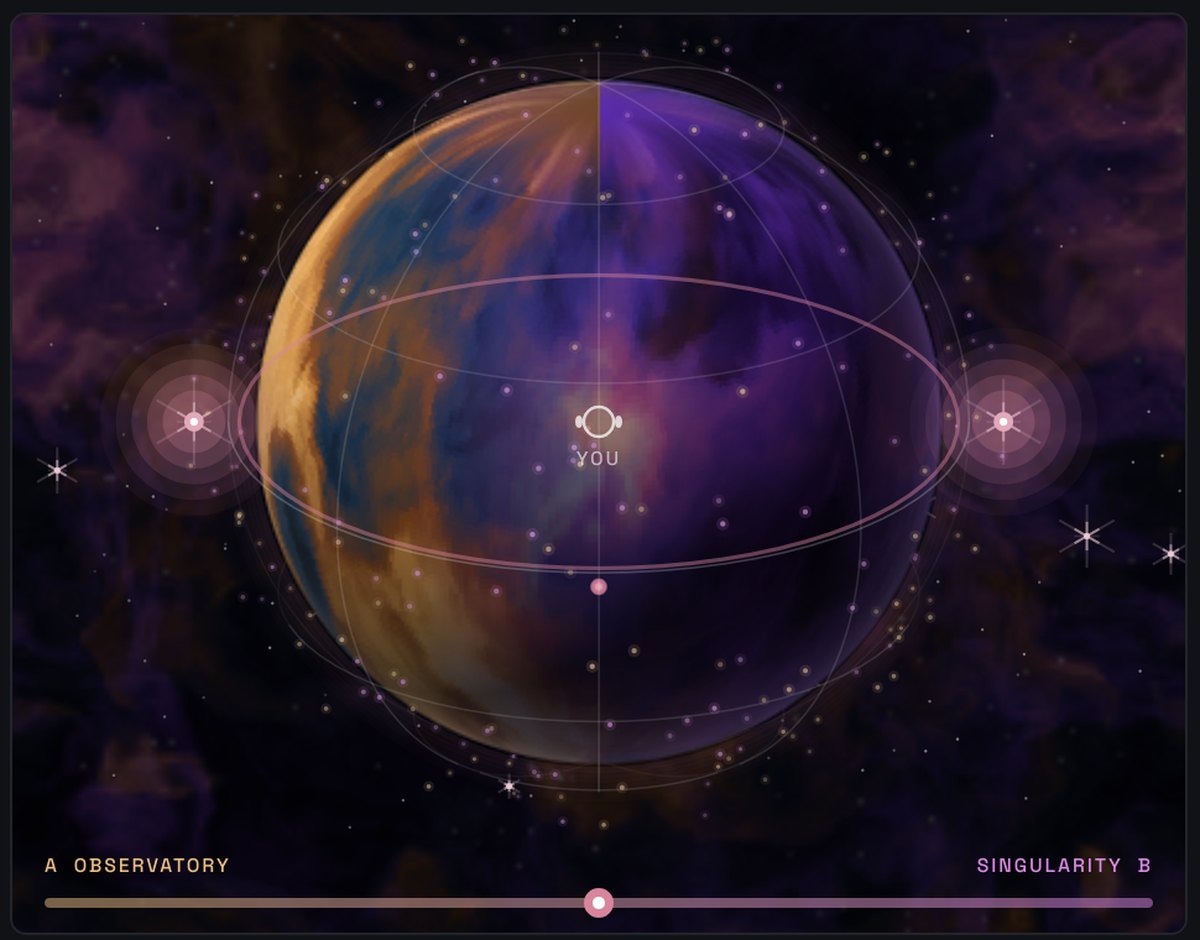
The bar under the GLOBE shows slot A on the left and slot B on the right, how far the orbit reaches, its SPEED in the middle, and where the morph is right now. In the GLOBE, slot A's particles glow in violet and slot B's in starlight, so you can watch one world fade into the other.
With SERIES routing, MORPH chooses how much of slot A you hear on its own and how much of the combined space from slot B, so an orbit becomes a slow zoom from a room out into a galaxy and back.
11SPIRAL and the GLOBE
SPIRAL sends the reverb travelling round a sphere around you: left and right, behind you, over the top and underneath. It works on speakers and comes fully alive on headphones.
| Control | Range | What it does |
|---|---|---|
| SPIRAL | 0 – 100% (0%) | How far the reverb travels. Low settings turn a wide stereo image gently round you. Turned up, the tail gathers into one cloud that sweeps hard left, hard right, behind you, overhead and underneath. |
| PATH | (SPIRAL) | The way it travels. SPIRAL climbs over and under, HALO circles above, FIGURE 8 weaves in front, COMET swoops close and away, fast near you and slow far off. |
| SPIN | 0.02 – 2 Hz (0.12 Hz) | How fast the reverb travels round you. |
| HEIGHT | 0 – 100% (60%) | How far it rises over your head and sinks under your feet. |
DEEPFIELD places the sound the way your ears do: by level, by a tiny time difference between your ears, by your head shading the far ear, a duller sound behind you and a brighter, airier one above. On the SPIRAL path the cloud also drifts nearer and further away. SPIRAL never makes the sound peak louder than it went in.
The GLOBE
- You are in the middle, inside a wire sphere seen a little from above.
- The cloud of particles is the reverb tail itself. How many glow, and how brightly, follows its level.
- Two bright cores with trails are the left and right halves of the tail, leading the swirl.
- Every hit on the input sends rings out round the planet like Saturn's: tilted with the planet, a band of fine rings with a dark gap, the far half passing behind the globe and the near half sweeping in front.
- Colour shows the slots: violet for slot A, starlight for slot B. FREEZE holds the cloud where it is.
12PARTIALS
Bring the reverb to life. A set of tuned partials, from 4 to 32, rings out of the reverb tail itself, across both slots and every engine.
Each partial is a tuned resonance that the tail feeds. It only sings while there is reverb to feed it, so the partials rise and fall with your playing: a pad's tail turns into a shimmering chord, a drum room starts to ring like a bell, a vocal's space hums along in tune.
| Control | Range | What it does |
|---|---|---|
| TYPE | (HARMONIC) | The series of partials. HARMONIC is a pure tone, ODD hollow and woody, BELL and GLASS metallic (GLASS is stretched, like a struck bar), CHORD a major-seventh chord across the octaves, NEBULA a scatter of strange, inharmonic tones. |
| AMOUNT | 0 – 100% (0%) | How much of the partials you hear. 0% is off. Up to 50% the partials rise to full level over the reverb; past 50% the reverb itself goes through them, so at 100% the whole space rings in tune. A level guard keeps them in check even when a note lands right on a partial, so they never blast. |
| PITCH | 30 Hz – 1 kHz (110 Hz) | The note the partials are built on. The display shows the note name. |
| COUNT | 4 – 32 (12) | How many partials ring. More is richer, fewer is purer. COUNT changes the colour, not the loudness. |
| RING | 0.15 – 10 s (2 s) | How long each partial keeps ringing. The high ones fade a little sooner, like a real object. |
| SHIMMER | 0 – 100% (35%) | Each partial drifts in pitch and twinkles in level on its own, like stars. |
| TILT | −100 – +100% (0%) | Left is warm (the low partials loudest), right is bright (all partials even). |
| SPREAD | 0 – 100% (70%) | How far apart the partials sit in stereo. 0% is all in the middle. |
| MIDI PITCH | (off) | When lit, the last MIDI note you play sets the pitch, so the reverb sings what you play. Until a note arrives, PITCH sets it. Send it the song's chord roots and CHORD with a long RING turns any tail into a pad in the song's key. |

13RUMBLE
Depth and darkness under the space: a sub octave, a low growl like distant thunder, and a way to sink the whole tail.
| Control | Range | What it does |
|---|---|---|
| RUMBLE | 0 – 100% (0%) | A deep, dark growl under the reverb. It follows the reverb's level, so it grows with the tail and fades with it. |
| SUB | 0 – 100% (0%) | Adds an octave below the reverb's low end. |
| DEPTH | 25 – 160 Hz (50 Hz) | How low the rumble and the sub sit. Lower is deeper, felt more than heard. |
| ROLL | 0 – 100% (40%) | How much the rumble swells and fades, rolling in and out like thunder. 0% is a steady growl. |
| DARK | 0 – 100% (0%) | Sinks the whole reverb: the highs fall away and the low end swells. |
Headroom
Deep sounds carry a lot of energy, so RUMBLE watches its own headroom. When the peaks get close to full scale, it turns down only what it adds (the sub, the growl and DARK's low lift), never the reverb itself, and brings it back up over a quarter of a second. While there is room, the depth comes through in full. You can turn everything up without it clipping.
Monitor RUMBLE on speakers or headphones that go down low: at a DEPTH of 25-40 Hz much of it is felt rather than heard. For a mix that has to play on small speakers, set DEPTH around 60-90 Hz so the growl stays audible.
14OUTPUT
The last stage of the reverb path, and the blend with your dry sound.
| Control | Range | What it does |
|---|---|---|
| WIDTH | 0 – 150% (100%) | The stereo spread of the reverb. 0% is mono, above 100% is extra wide. |
| MAKEUP | 0 – +24 dB (0 dB) | Extra level for the reverb. Reverbs often sit quieter than the dry sound. |
| COMP | 0 – 100% (0%) | A vintage optical-style compressor on the reverb, with a little warmth. It holds the tail up so it sustains and sits thick and even. |
| ECLIPSE | 0 – 100% (0%) | Ducks the reverb while you play, so it blooms in the gaps and never muddies the sound. |
| AUTO GAIN | (on) | When lit, the reverb is kept at a steady level next to your sound, whatever the settings. It follows your input's loudness while you play and holds through silence and FREEZE. |
| FREEZE | (off) | Holds the reverb forever. New sound stops entering until you turn it off. |
| MIX | 0 – 100% (35%) | Dry (0%) to fully reverb (100%). At 50% both are at full level. |
| MASTER | −inf – +6 dB (0 dB) | The final output level, in the header. The meter turns amber near full scale and shows CLIP in red. |
| LIMIT | on / off (on) | In the header, by MASTER. A brick-wall limiter on the output, after MASTER: nothing goes over −0.3 dB. It adds no delay. Turn it off if you'd rather limit later in your mix. |
IN / OUT
The strip under the panels holds the controls that look after your whole signal.
| Control | Range | What it does |
|---|---|---|
| INPUT | −24 – +24 dB (0 dB) | How loud your sound comes in, with its own meter. Turn it up to drive the reverb (and DRIVE) harder, down to tame a hot track. It changes the dry sound too. Chips can move it. |
| PROCESS | STEREO / MID / SIDE | What the reverb hears. STEREO: all of it. MID: only the middle of the mix (vocal, kick, bass). SIDE: only the edges (wide guitars, room sound). Your dry sound is never changed. |
| ANALYZER | on / off (on) | Your sound's frequencies, 20 Hz on the left to 20 kHz on the right. The faint line is what comes in, the colour is what goes out. It costs a little CPU only while the window is open; turn it off to save that too. |
| OVERSAMPLE | OFF / 2x / 4x / 8x (2x) | Runs DRIVE at 2, 4 or 8 times the sample rate so its grit stays clean, without harsh fizz. Higher costs more CPU. At DRIVE 0% it costs nothing at all. |
| FAST / LINEAR | (FAST) | The oversampling filter. FAST is the lightest, LINEAR the cleanest. Either way DEEPFIELD takes the filter's small delay out of PRE-DELAY, so nothing shifts in your song. |
| HQ / ECO | (HQ) | QUALITY. ECO is lighter, for older computers and big sessions: MAGNETAR uses half its spring stages, PARTIALS stops at 12, OVERSAMPLE goes no higher than 2x FAST, the analyzer rests and the window redraws half as often. |
DEEPFIELD sleeps when it isn't needed. When your track goes silent and the tail has faded away, it stops working completely until sound comes back, so a quiet track costs almost nothing. FREEZE keeps it awake, of course.
With AUTO GAIN on you can change engines, DECAY and MASS freely and the level stays put, which makes it easy to compare sounds by ear. Turn it off when you want the reverb's level to change with the settings, for example when automating DECAY as an effect.
For FREEZE pads: play a chord, light FREEZE, then play over the frozen space. PARTIALS, RUMBLE and SPIRAL keep working on the frozen tail.
15Modulation
CHIPS are Sequoia's exclusive drag-and-drop modulation. Drag any chip onto any parameter and it moves that parameter. No menus, no matrix to set up first.
Any knob can move on its own. The eleven chips along the bottom are the sources; drag one onto a knob and it moves it.
Making a routing
- Drag a chip onto any knob. A coloured arc appears round the knob.
- Drag the dots at the ends of the arc to set how far the source sweeps the knob. On a two-way source (LFO 1-3, RANDOM) each dot moves on its own: the upper dot sets how far it pushes up, the lower dot how far it pulls down. The knob and the other dot stay where they are, unless you pull a dot past the knob's pointer; then the knob follows the dot. On a one-way source (ENV, VELO, WHEEL, PRESS, KEY) the arc starts at the knob and you drag its far end; pulling the start dot toward the far end does nothing, and pulling it the other way, past the knob, brings the knob along. Alt-drag the knob to change both ends together.
- Shift + right-click the knob to remove a routing, or to add one with Modulate with.
Sliders take chips too. Drop a chip on the MIX slider and the A H D S R sliders in the ENV window and a thin lane appears beside the slider in the source's colour, with a dot at each end: drag either dot to set how far it reaches that way, just like a knob's arc. While the source moves it, the slider's cap rides the live value and a small tick marks where you set it. Up to three per slider; an ENV can't move its own window's sliders.
Up to three per knob. Each knob takes up to three sources; drop a fourth chip and the help bar asks you to remove one first (Shift + right-click the knob). They stack in the order you added them, the first one closest to the knob, and their dots never sit on top of each other, so you can always grab the one you want. Where space is tight, a knob with two or three arcs draws its dial a little smaller to make room, and grows back when you remove them. Both dots of every arc can be automated from your DAW.
Even arcs. A two-way chip (LFO, RANDOM, KEY and bend where the plugin has them) swings both up and down, so when you drop one on a knob it gets the same room on both sides: the two end dots sit the same distance from the knob, even when the knob is not in the middle. If the knob is close to an end (within 10%), it can only move one way, so the arc keeps its full depth. One-way chips (ENV, macros, VELO, WHEEL and so on) are unchanged. Dropping the same chip on the same knob again evens it the same way. Projects and presets you saved earlier keep their arcs exactly as they were. To even out an arc later, Shift + right-click the knob and choose Mirror the two ends next to that chip: both ends become the average of the two, shrunk to fit around the knob, never below 10%.
One source can move many knobs: up to 16 routings in all. While the sources move, so does the knob: its pointer and lit spokes follow the modulation, all the arcs added together, and a small tick just inside the spokes marks where you set it. On each arc a dot rides along at that source's own speed, with a bright stretch from your setting to where the source is pushing the knob right now. Each source has its own shade of gray so you can tell them apart.
The knobs inside the ENV and LFO cards take chips too. Drop LFO 2 on LFO 1's RATE to make it speed up and slow down, or RANDOM on its MORPH for a wave that keeps changing. A card's own chip can't move its own knobs (LFO 1 can't move LFO 1's RATE); the help bar tells you if you try.
Click an ENV or LFO chip to open its card. While a card is open, every control that source moves lights up and the help bar lists them. Click any other chip and the help bar explains it.
The sources
| Chip | What it is |
|---|---|
| ENV 1-3 | Envelopes. Click to open the ENV card: ATTACK, HOLD, DECAY, SUSTAIN, RELEASE, VELO, and TRIG (what starts it: a MIDI NOTE, the beat from 1 BEAT to 4 BARS, or your INPUT getting loud). |
| LFO 1-3 | Low-frequency oscillators that swing both ways round the knob's setting. Click to open the LFO card (below). |
| VELO | How hard the last MIDI note was played. |
| WHEEL | Your MIDI keyboard's mod wheel. |
| PRESS | Aftertouch: how hard you press keys that are already down. |
| KEY | Which note you played, low to high. |
| RANDOM | A new random value every two seconds, gliding smoothly from one to the next. |
The ENV card
| Control | Range | What it does |
|---|---|---|
| ATTACK | 1 ms – 10 s | How long the envelope takes to rise. |
| HOLD | 0 – 5 s | How long it stays at the top. |
| DECAY | 1 ms – 10 s | How long it takes to fall to the sustain level. |
| SUSTAIN | 0 – 100% | The level it holds while triggered. |
| RELEASE | 1 ms – 20 s | How long it takes to fade at the end. |
| TRIG | NOTE / 1 BEAT – 4 BARS / INPUT | What starts it. By default ENV 1 follows your INPUT and ENV 2 the bar. |
| VELO | 0 – 100% | How much a harder note, or a louder input, makes the envelope bigger. |
The LFO card
| Control | Range | What it does |
|---|---|---|
| SHAPE | 7 shapes | SINE, TRI, SAW UP, SAW DOWN, SQUARE, S&H (stepped random) and RANDOM (smooth random). |
| RATE | 0.01 – 20 Hz | How fast it moves. |
| SYNC / DIV | 1/32 – 4 BARS | Locks the LFO to your song's tempo, at the note length DIV sets. |
| RETRIG | on / off | Restarts the LFO every time ENV 1 is triggered. |
| SMOOTH | 0 – 100% | Rounds off the corners: a square becomes a soft pulse, then a gentle wave. S&H keeps its flat steps and rounds both edges of each one by the same amount, from a slight softening to a smooth wave through every value. |
| MORPH / TYPE | 9 types | Bends the shape: BEND, SKEW, MIRROR, SYNC, FOLD, STEPS, SPIKE, RIPPLE or MUTATE. MORPH sets how far. |
| VARIATION | 0 – 999 | Which version of the morph you get. |
| RISE | 0 – 5 s | Fades the LFO in after it restarts. |
What can be modulated
SIZE, DECAY, MASS, DAMP, DIFFUSE, MOD, DRIFT · MORPH, SPEED, REACH · SPIN, SPIRAL, HEIGHT · DRIVE, PRE-DELAY, LO CUT, HI CUT · LEVEL A, LEVEL B · WIDTH, MAKEUP, COMP, ECLIPSE, MIX · PARTIALS AMOUNT, PITCH, RING, SHIMMER, TILT · RUMBLE, SUB, DEPTH, DARK · INPUT · in the cards: LFO 1-3 RATE, SMOOTH, MORPH and RISE, ENV 1-3 VELO.
DEEPFIELD is an effect, but it listens to MIDI too. Route a MIDI track to it and the keyboard chips, ENV TRIG NOTE and PARTIALS' MIDI PITCH all come alive. Without MIDI, set an ENV to TRIG INPUT and it follows your playing instead.
16MIDI MAP
Play the controls from your keyboard or controller: the mod wheel, aftertouch, a pedal or any knob or slider.
- Click MIDI in the header. SOURCE starts on MOD WHEEL. Pick another from the menu, or click LEARN and move a knob on your controller.
- + ADD a control from the list, or choose CUSTOM and just touch the knob, slider or button you want. Repeat to make one source move several controls at once.
- Set each one's range with FROM and TO: where the control sits when the source is at zero, and where it goes at full. Put TO below FROM to make it go the other way.
Shortcut: Shift + right-click any knob and choose Map to MIDI. Mapped controls show a small tag: MW for mod wheel,
AT for aftertouch, CC74 and so on.
MIDI mappings are saved with your song, not with presets, so changing presets never loses your controller setup.
17RANDOMIZE
Roll a brand-new sound in one click, and step back and forward through what you rolled.
| Control | What it does |
|---|---|
| RANDOMIZE | Rolls a new sound. |
| ‹ | Goes back to the previous sound, all the way back to where you started. |
| › | Goes forward again. |
| Right-click | Choose how far a roll goes: MILD (small changes around your sound), MEDIUM (tasteful new sounds) or WILD (anything goes). Lock a module so RANDOMIZE leaves it alone: STACK, SHIFT, SPIRAL, SPACE, INPUT, OUTPUT, PARTIALS or RUMBLE. |
RANDOMIZE never touches MASTER, MAKEUP, AUTO GAIN or FREEZE, never leaves you with silence, and never blasts. Your choice of amount and your locks are saved with your song.
Found a space you love but want a different engine pair? Lock SPACE, SPIRAL and OUTPUT and keep rolling: only the stack and the motion change.
18Presets
67 presets in 12 categories, each designed from scratch for DEEPFIELD.
Where presets live
| System | Folder |
|---|---|
| macOS | ~/Music/Sequoia Synthesizers/DEEPFIELD/Presets |
| Windows | Documents\Sequoia Synthesizers\DEEPFIELD\Presets |
Factory presets are built into DEEPFIELD; the folder holds the presets you save. (Copies of the factory presets that an older
version installed in a Factory folder are moved into _old factory presets the first time this version runs, so they
don't show twice; any you changed stay where they were.) A preset file
(.deepfield) can be shared with anyone who has DEEPFIELD: they open it with Load a preset file… in the preset menu (click the preset name). A preset saved by an older version
of DEEPFIELD loads with any newer controls at their defaults, so it always sounds the way it did.
19Recipes
Starting points for common jobs. Begin from INIT, then set these.
A vocal that stays clear
SLOT A CORONAL PLATE, SLOT B OFF · DECAY 1.8 s · PRE-DELAY 60 ms · LO CUT 200 Hz · ECLIPSE 40% · MIX 25%. The plate blooms in the gaps between phrases and gets out of the way while you sing.
Drums in a real room
SLOT A OBSERVATORY · SIZE 25% · DECAY 0.8 s · MASS −40% (up close) · DIFFUSE 50% · LO CUT 300 Hz · MIX 20%.
An endless ambient pad
SLOT A PROTOSTAR, SLOT B SINGULARITY, SERIES · DECAY 20 s · REACH 60% · SPEED 0.05 Hz · SPIRAL 40% · PARTIALS CHORD, AMOUNT 35%, RING 6 s · MIX 60%. Light FREEZE when the chord you want is ringing.
A singing tail in the song's key
Any engine · PARTIALS TYPE HARMONIC or CHORD, AMOUNT 50%, COUNT 12, RING 4 s, SHIMMER 40% · light MIDI PITCH and send the song's bass line or chord roots to DEEPFIELD as MIDI.
Distant thunder under a cinematic hit
SLOT B SINGULARITY, MASS +50% · DECAY 12 s · RUMBLE 80% · SUB 30% · DEPTH 45 Hz · ROLL 90% · DARK 40% · MIX 40%.
A space that moves round your head
SPIRAL 70% · PATH SPIRAL · SPIN 0.15 Hz · HEIGHT 70%. Then drag LFO 1 (SINE, 0.05 Hz) onto SPIN for a sweep that speeds up and slows down. On headphones it travels over the top and underneath.
Dub spring throws
SLOT A MAGNETAR, MASS +30% · DECAY 3 s · PRE-DELAY 250 ms · DRIVE 30%. Map the mod wheel to MIX (FROM 0%, TO 70%) in MIDI MAP and ride it for throws.
20Questions and answers
DEEPFIELD doesn't show up in my DAW.
Rescan plugins in your DAW's settings, then restart it. On macOS, make sure the download block was cleared (chapter 2). Look for it under Sequoia Synthesizers Co. If your DAW lists several formats, any of them works.
The reverb is too quiet, or too loud.
With AUTO GAIN on, the reverb follows your input's loudness, so set the balance with MIX. MAKEUP adds up to +24 dB on top. Turn AUTO GAIN off if you want the reverb's level to follow the settings instead.
The sound swells or ducks while I play.
That's ECLIPSE (it ducks while you play) or a negative MASS on SINGULARITY (the tail swells inward). Turn ECLIPSE down, or MASS up to zero.
The reverb won't stop.
FREEZE is lit, or DECAY is very long. Turn FREEZE off; the tail then fades at the DECAY time.
I don't hear SPIRAL much on my speakers.
SPIRAL places sound around your head, which speakers can only partly show. Turn SPIRAL above 50% and try headphones; you'll hear it travel behind, above and below you.
The partials don't sound in tune with my song.
Set PITCH to the song's key note (the display shows the note name), or light MIDI PITCH and send the song's notes to DEEPFIELD. NEBULA and GLASS are inharmonic on purpose.
Does DEEPFIELD add latency?
No. DEEPFIELD adds no latency, so it lines up in your mix and can be played live. That stays true with any OVERSAMPLE setting: the oversampler's small delay is taken out of the reverb's pre-delay instead, and LIMIT doesn't look ahead.
DEEPFIELD uses too much CPU on my computer.
Switch QUALITY to ECO (bottom right), set OVERSAMPLE to 2x or OFF, and keep PARTIALS COUNT low. Closing the plugin window also helps: the displays only work while you can see them.
Where are my MIDI mappings?
They're saved with your song, not in presets, so they're there whenever you open the song again, whatever preset is loaded.
21Specifications
| Item | |
|---|---|
| Formats, macOS | VST3, AU, AUv3, CLAP · macOS 10.15 or later · Apple Silicon and Intel |
| Formats, Windows | VST3, CLAP · Windows 10 and 11, 64-bit |
| Type | Stereo audio effect that accepts MIDI (notes, mod wheel, aftertouch, any CC) |
| Engines | 12: SINGULARITY, OBSERVATORY, CORONAL PLATE, DRIFT FIELD, PROTOSTAR, PULSAR, MAGNETAR, ORBIT 78, REDSHIFT, EVENT HORIZON, AURORA, ANDROMEDA |
| Slots | 2, PARALLEL or SERIES, with GALACTIC SHIFT morph and orbit |
| Decay | 0.2 – 60 s, up to infinite with FREEZE and MASS |
| Modules | INPUT, STACK, GALACTIC SHIFT, SPACE, SPIRAL, PARTIALS (4–32 partials, 6 types), RUMBLE, OUTPUT |
| Modulation | 3 envelopes, 3 LFOs, velocity, mod wheel, aftertouch, key, random · 16 routings · 49 targets, including the knobs in the ENV and LFO cards · separate up and down depths on two-way sources |
| MIDI MAP | Any CC, mod wheel or aftertouch to any control, with ranges |
| Presets | 67 factory presets in 12 categories |
| Window | SIZE menu (SMALL, MEDIUM, LARGE, EXTRA LARGE, FIT TO SCREEN) or drag the corner; sharp at any size · a tall layout for windows taller than they are wide |
| Output | Brick-wall LIMIT at −0.3 dB (no look-ahead, no delay) · INPUT −24 to +24 dB · STEREO / MID / SIDE processing |
| Oversampling | OFF, 2x, 4x, 8x on DRIVE · FAST (IIR) or LINEAR (FIR) · no added latency |
| CPU | One instance at 48 kHz, 128-sample buffer, on our test computer: about 4% of one core while playing, about 9% in the heaviest setting (5% in ECO), and almost nothing (0.05%) once your track goes silent. Newer computers need less. |
| Undo | 100 steps · A / B compare |